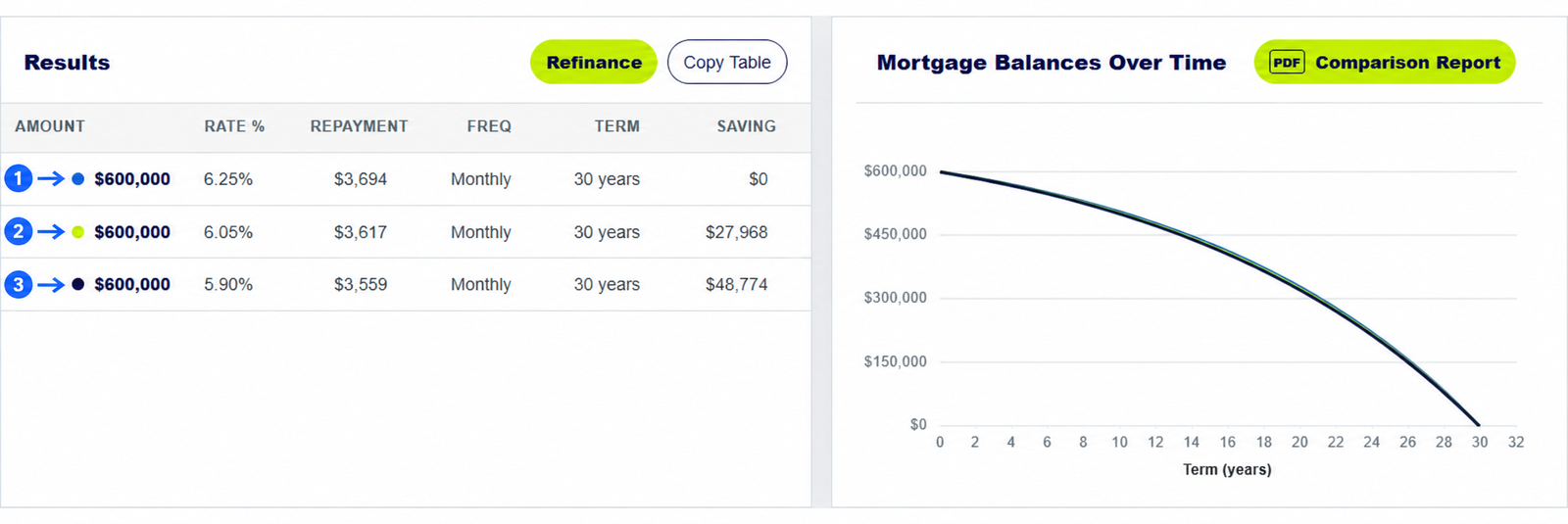
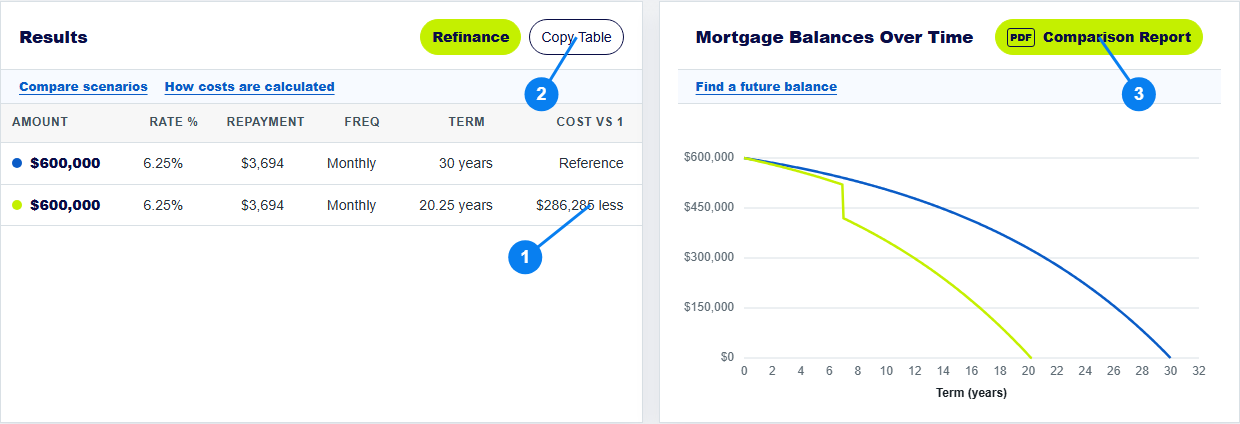
After entering your loan figures, select Comparison Report for all modelled scenarios, Selected Summary for the active one, or Print Schedule PDF for its full payment table. Each opens a print-ready view that you can print or save as a PDF through your browser. Use Copy Table if you need the results in an email or document.
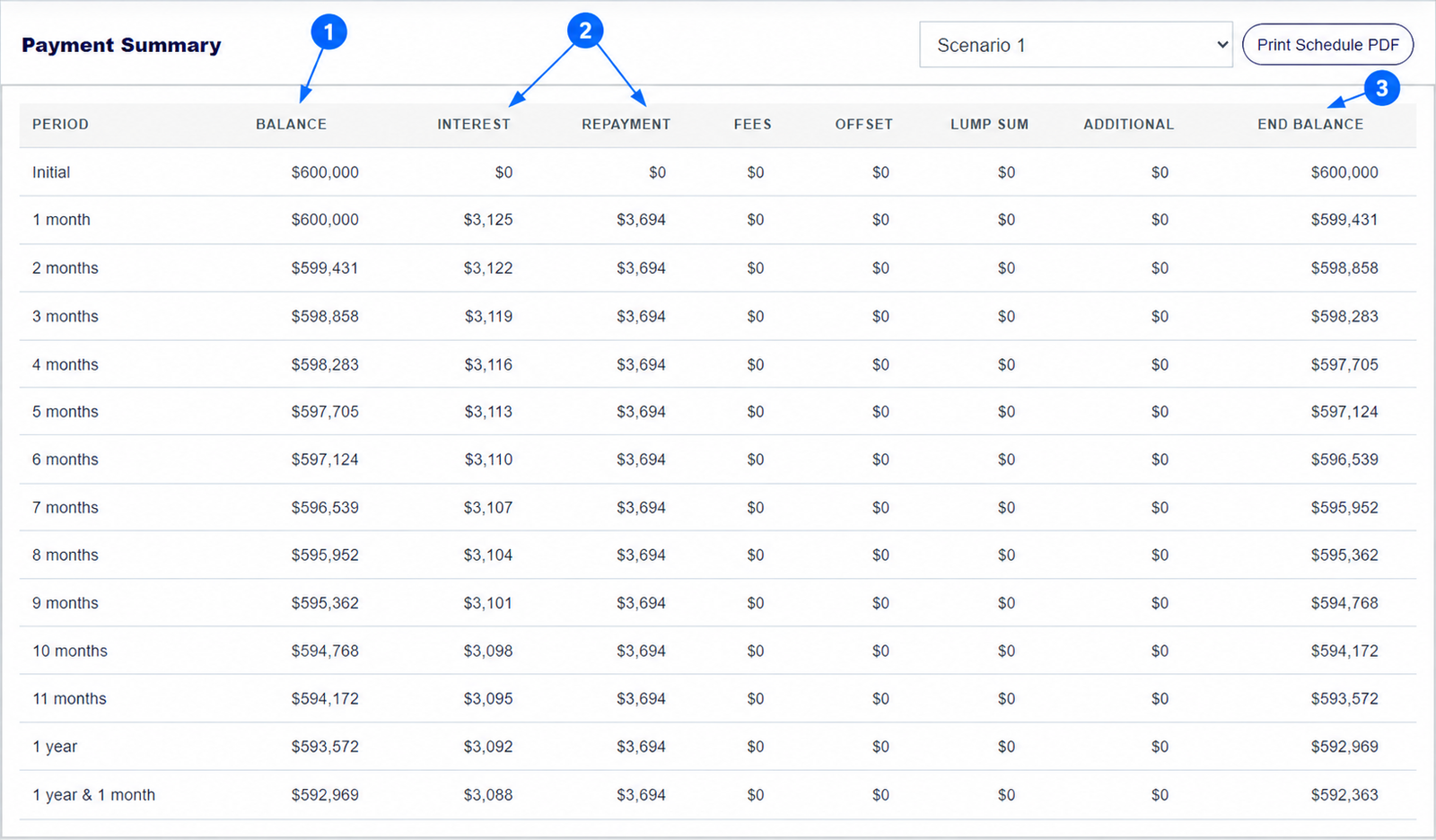
The numbered arrows on the real calculator screenshot above show the controls used in this example. Open the calculator to enter your own figures.
How do you create a multi-scenario mortgage comparison PDF?
Set up the scenarios you want to share and check the values in the results table. Select Comparison Report above the scenarios or graph. In the browser's print window, choose a printer or Save as PDF. Review the preview before saving, especially when you have several scenarios or long notes. The report reflects the inputs currently on screen, so make changes before opening it.
For a customer discussion, label each scenario in your own covering email or notes so the purpose of each option is clear.
How do you save a PDF for one selected home loan scenario?
Choose the scenario tab you want, then select Selected Summary. This is useful when you want to discuss one option without the full side-by-side report. Check the amount, rate, term, repayment type, fees and extra-payment assumptions in the print preview. Use your browser's Save as PDF destination and a file name that describes the example, not a claim that a lender approved it.
A calculator summary is an estimate, not a lender quote, Key Facts Sheet or approval.
How do you print the full mortgage repayment schedule?
Scroll to Payment Summary, select the scenario in its dropdown, then choose Print Schedule PDF. The schedule is period by period and may run for many pages. Check that the right scenario is selected, and use print preview to confirm the column headings fit. A 30-year monthly example contains 360 payment periods plus its initial row.
The schedule can answer a future-balance question, such as the amount left after eight years. The schedule guide explains each column.
How do you copy mortgage results into an email or document?
Select Copy Table in the Results panel, then paste into your email, document or worksheet. Check the pasted formatting and figures before sending, because recipient applications handle tables differently. If you need the full payment schedule rather than the short comparison table, use the schedule print option instead.
Share only the assumptions needed for the comparison and avoid presenting a modelled saving as guaranteed. Rates, fees and lender rules can change.
Keep exploring: repayment schedule guide, home loan comparison guide. For home-loan product conditions, see MoneySmart on checking home-loan documents.
Make a mortgage PDF report
Enter your figures, check the results and choose the output you need.
How do you save or share a mortgage calculator result?
How do I save a PDF from the mortgage repayment calculator?
The report and schedule buttons open a print-ready view. Use your browser's print dialog to save the result as a PDF.
Can the home loan calculator copy the full schedule with Copy Table?
No. Copy Table copies the short comparison results. Use Print Schedule PDF for the detailed period-by-period schedule.
Is a PDF report from this calculator a loan approval?
No. It is an estimate based on the figures entered. Check a lender's current documents and approval conditions separately.
About this example: The screenshots use the calculator's own illustrative $600,000 loan example and a second modelled scenario. Reports should be regenerated after changing any input. Screenshots were captured from this calculator on 30 September 2026. Numbered arrows highlight important parts of the featured image. Results are estimates, not a lender quote or personal financial advice. Read the calculator assumptions.