To use this free Australian mortgage repayment calculator, enter the loan amount, annual interest rate, term, repayment frequency and repayment type. Select Add Scenario and Copy From 1 to compare a second option. Open Advanced Options to test extra repayments, a lump sum, an offset balance, introductory rates and ongoing fees. The results update with a balance graph, full repayment schedule and reports you can print or save as PDF.
This visual walkthrough uses the Mortgage Repayment Calculator itself. The screenshots show its actual controls and a worked example, captured on 30 September 2026. Blue numbered arrows show where to click. The figures are estimates, not a lender quote.
How do you enter home loan details in a mortgage repayment calculator?
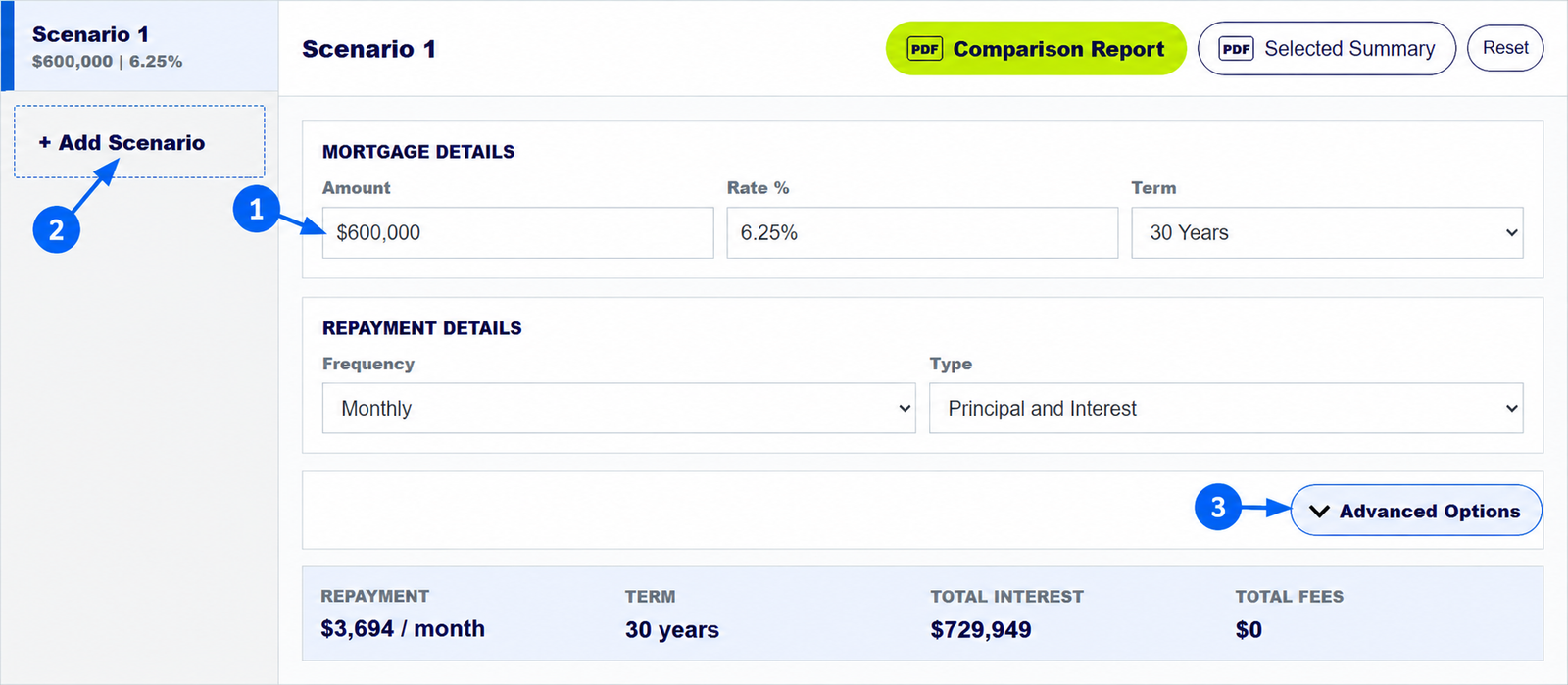
Start with the Amount, Rate % and Term fields. Then choose how often repayments are made and whether the loan is Principal and Interest or Interest Only. The calculator's default example is a $600,000 loan at 6.25% over 30 years with monthly principal and interest repayments. Replace those figures with your own loan offer before relying on the estimate.
The annotated calculator image above points to the first three controls: 1 enter your loan figures, 2 add a comparison scenario, and 3 open Advanced Options for a detailed test.
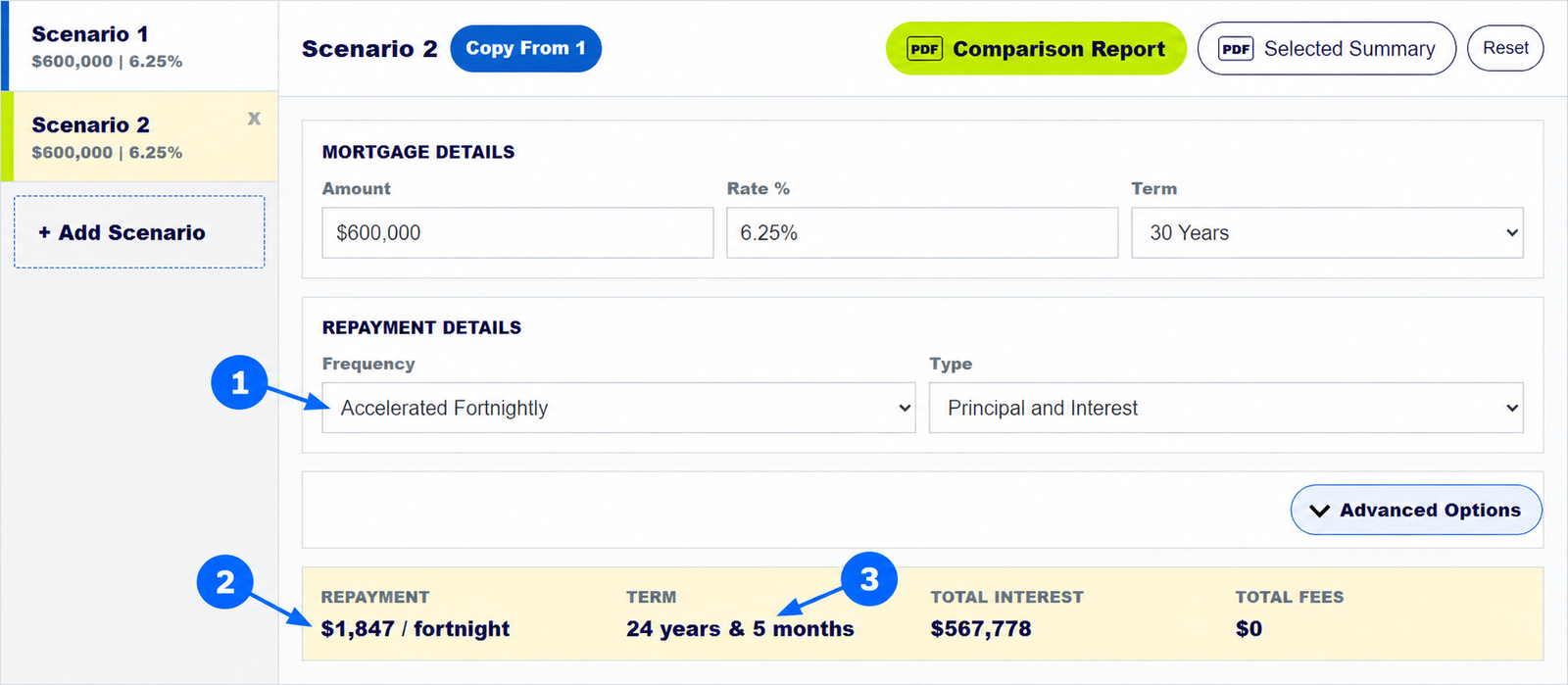
Repayment frequency matters. Monthly, true fortnightly and accelerated fortnightly options are different calculations. Match the frequency and payment method in the lender's offer when you compare results.
How do you compare up to nine home loan scenarios?
Select Add Scenario to create another option. A new scenario starts blank; select Copy From 1 to duplicate the baseline, then change only the fields you want to test. For example, keep Scenario 1 as your current loan and use Scenario 2 for a different rate or repayment strategy. You can add up to nine scenarios and compare their repayments, term and cost differences side by side. Scenario 1 is the reference for cost comparisons.
How do an extra $200 a month and a $100,000 lump sum change a mortgage?
In this worked example, Scenario 2 copies the $600,000, 6.25%, 30-year baseline. Under Extra Repayments, we enter $200 with start month 0. Under Lump Sum, we enter $100,000 paid in month 84, seven years after the start. The screenshot shows exactly where those entries go.
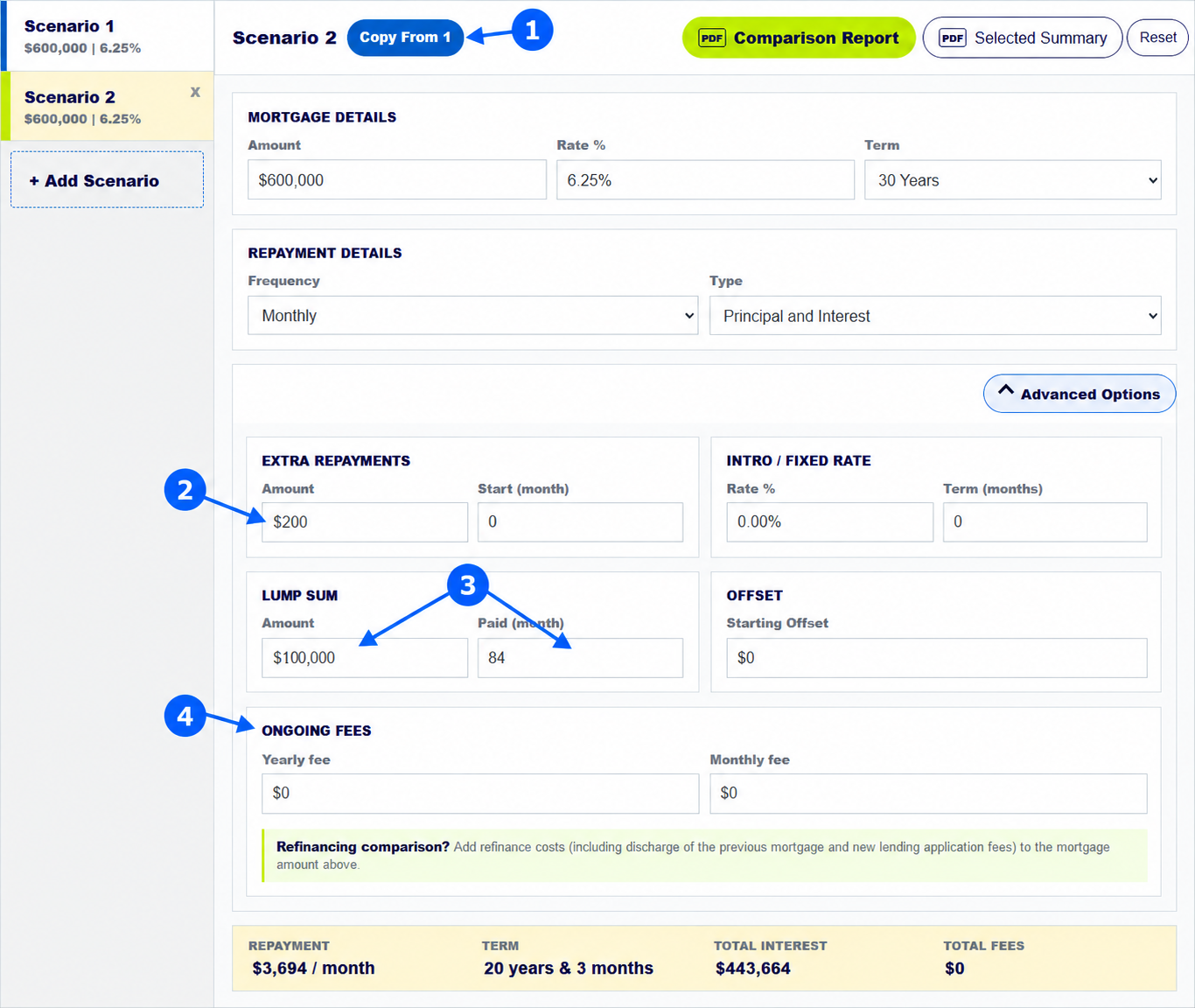
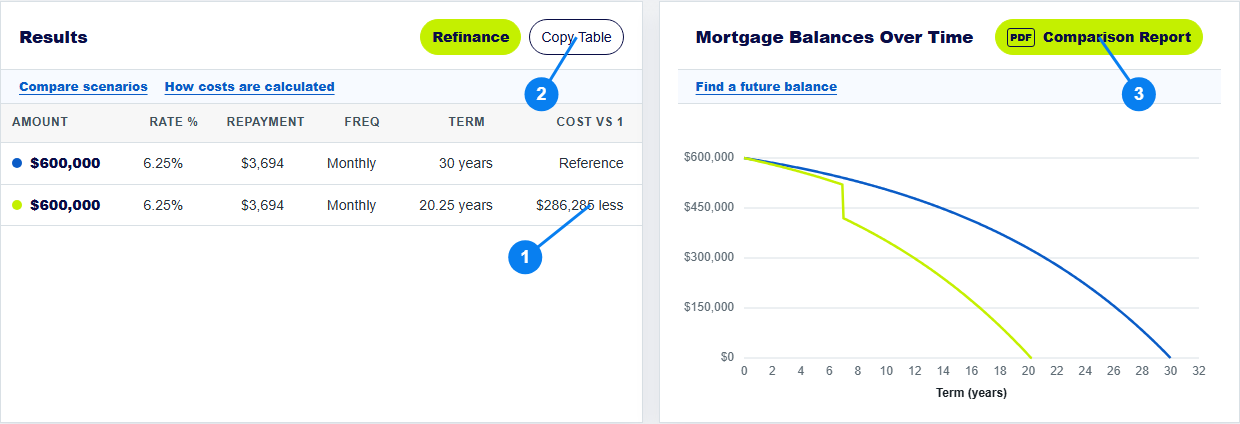
For these exact inputs, the calculator estimates 20 years and 3 months to repay Scenario 2, compared with 30 years for Scenario 1, and $286,285 in estimated savings. The scheduled monthly repayment remains about $3,694 in both rows; the additional $200 and lump sum reduce principal and shorten the projected term. These figures assume the modelled rate and payment pattern continue. Your lender's interest method, dates, limits and fees may change the result.
How do you model an offset account, introductory rate and mortgage fees?
Open Advanced Options in the relevant scenario. Enter a Starting Offset balance to model interest calculated on a lower effective balance; the offset is not treated as a payment to principal. Use Intro / Fixed Rate for a temporary rate and its duration in months, while Rate % remains the ongoing rate. Enter Yearly fee and Monthly fee when a loan product charges them, then compare the total cost with an otherwise similar scenario. Keep product terms and all other assumptions aligned so a change in one feature is easy to understand.
An offset account may work differently across lenders, and the calculator cannot decide whether a particular loan or refinance is suitable for you. Check the product documents and repayment assumptions before acting.
How do you read mortgage repayment results and the balance graph?
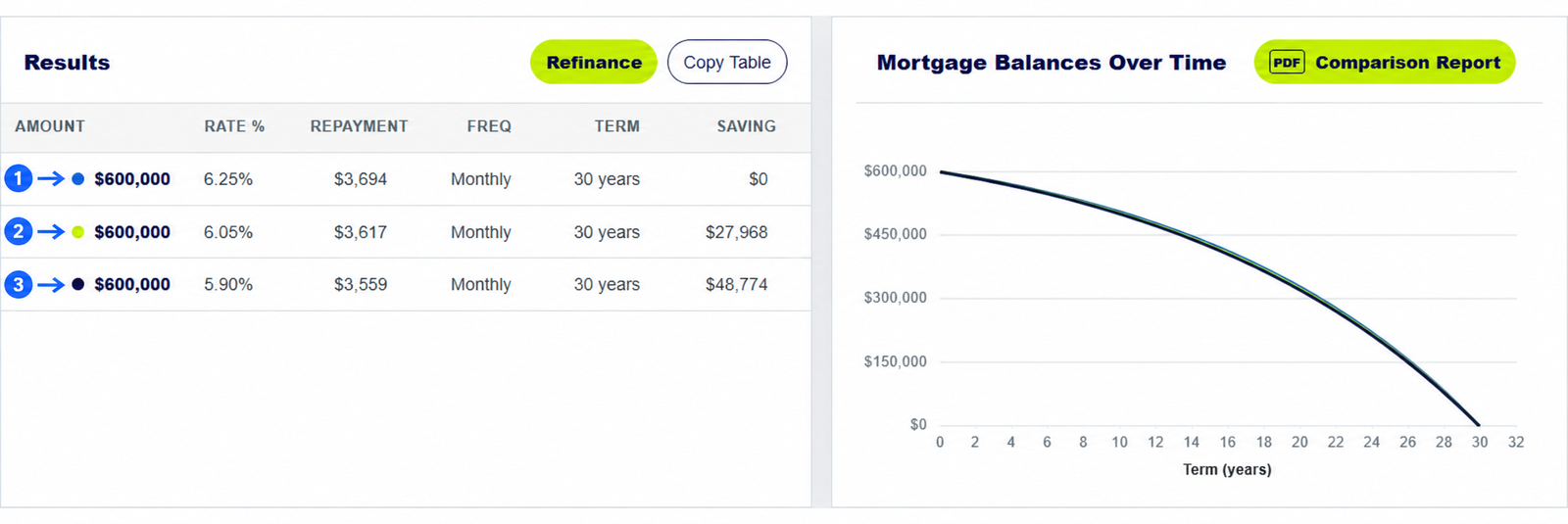
The Results table compares amount, rate, scheduled repayment, frequency, estimated term and Cost vs 1. That last column shows whether modelled interest plus ongoing fees are lower or higher than Scenario 1. The Mortgage Balances Over Time graph shows how each scenario's loan balance is projected to fall. In the example below, the green Scenario 2 line drops sharply at year seven because that is when the $100,000 lump sum is modelled. It then reaches zero sooner than the blue baseline line.
Below the graph, the Payment Summary contains the full repayment schedule. It lists each period's opening balance, interest, repayment, fees, offset, lump sum, additional repayment and ending balance. Use it to check a specific month or the projected balance at a future year, rather than relying on the graph alone.
How do you copy a mortgage table or save a PDF repayment report?
Select Copy Table to paste the comparison into an email or document. Select Comparison Report to open the printable multi-scenario report, or Selected Summary for the active scenario. Use your browser's print dialog to print or Save as PDF. Under Payment Summary, select Print Schedule PDF for the detailed schedule. Review the assumptions and all entered figures before sharing a report with a customer or lender.
Compare home loan repayments with your own figures
Start with one loan, copy it into another scenario, then change a rate, fee or repayment strategy.
What else should you know about a mortgage repayment calculator?
How does the mortgage repayment calculator calculate repayments in Australia?
Enter the amount borrowed, annual interest rate, loan term, repayment frequency and repayment type. The calculator estimates repayments from those inputs. Add fees, offset balances, extra repayments or a lump sum if you want a more detailed projection.
Can I compare nine scenarios in the home loan calculator?
Yes. The home loan calculator supports up to nine scenarios. Copy a baseline into each one and change the fields you want to compare. Scenario 1 is the reference for the Cost vs 1 column.
Does a lump sum in this mortgage calculator reduce the scheduled repayment?
In this calculator, a lump sum reduces the modelled principal and may shorten the term. It does not automatically lower the scheduled repayment. Ask the lender whether it would recalculate the payment and whether any limits or charges apply.
Can I get a full repayment schedule and PDF from the calculator?
Yes. Scroll to Payment Summary for the period-by-period schedule, then choose Print Schedule PDF. You can also open a comparison report or a selected-scenario summary and save it as a PDF through your browser.
About this example: Screenshots were taken from the live local version of LoanCalculator.Mortgage on 30 September 2026 using the inputs stated above. Annotation arrows were added for navigation. Results are estimates and general information, not a loan offer or personal financial advice. See the calculator disclaimer.